

OpenClaw Installation & Setup
This guide describes the initial configuration of your OpenClaw instance immediately after the automated installation via the PowerPanel on Debian 13 or Ubuntu 24.04: SSH tunnel to the WebGUI, gateway token and CLI onboarding.
Once the PowerPanel has finished deploying the Ubuntu 24.04 or Debian 13 template with OpenClaw on your VPS or dedicated server, the server is ready for the following setup. In the Server4You template, OpenClaw is set up under
root; the configuration is stored in /root/.openclaw/. Run the following OpenClaw commands as root.Step 1
Set up a Secure SSH Tunnel
For security reasons, the OpenClaw Gateway and its WebGUI (Control UI) only listen on
127.0.0.1 and are not publicly accessible. Create an encrypted tunnel from your local terminal and replace user with your SSH login:Local Terminal
ssh -N -L 18789:127.0.0.1:18789 user@your-server-ip
Once the tunnel is active, you can access the interface locally at:
Browser URL (local)
http://127.0.0.1:18789/
Dashboard Preview
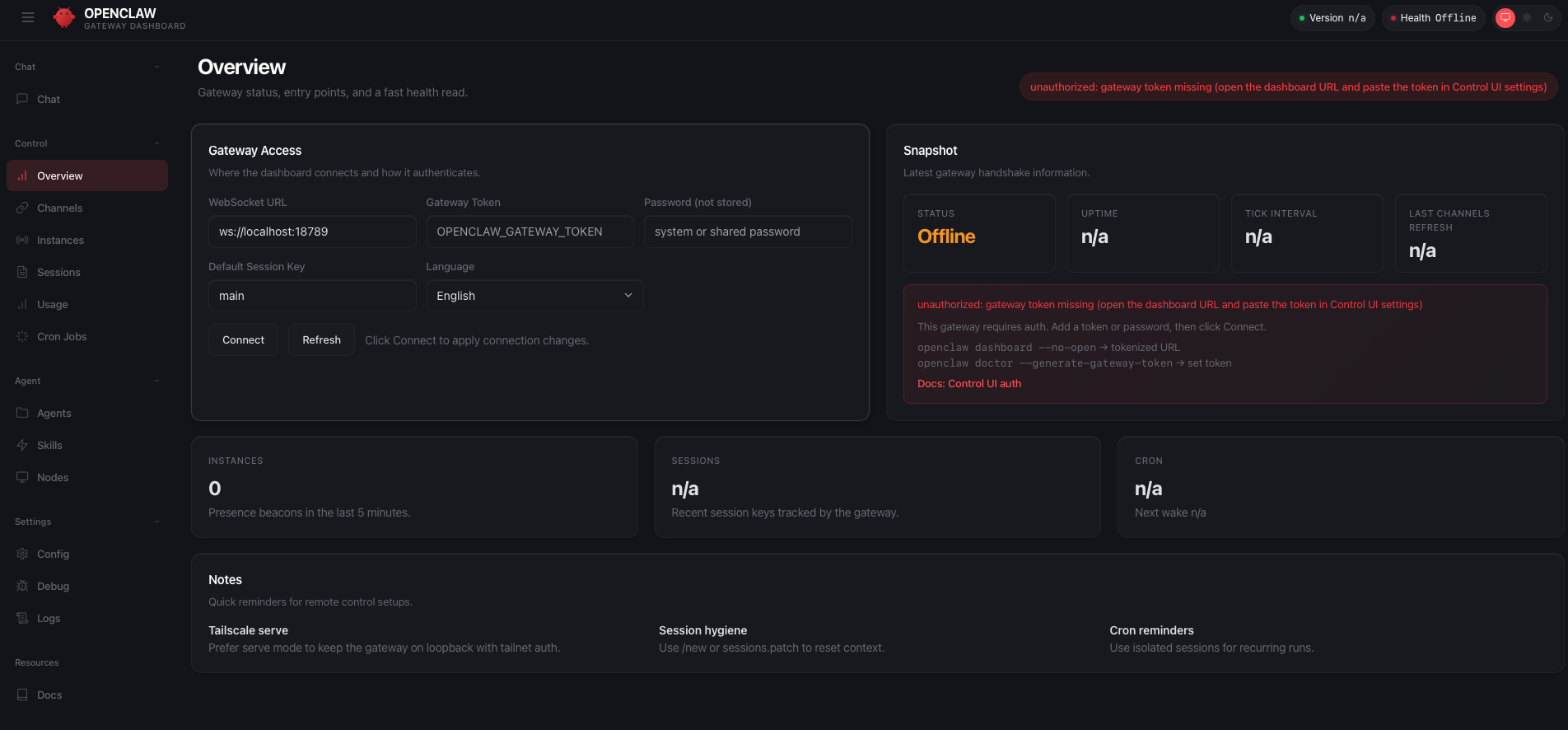
Note:This is the initial view. The status shows Offline because the gateway token hasn't been entered yet.
Step 2
Authenticate Gateway Access
Log in to your server via SSH and open the OpenClaw configuration file. The token is stored in the
gateway section under auth → token:Server Terminal
cat ~/.openclaw/openclaw.json
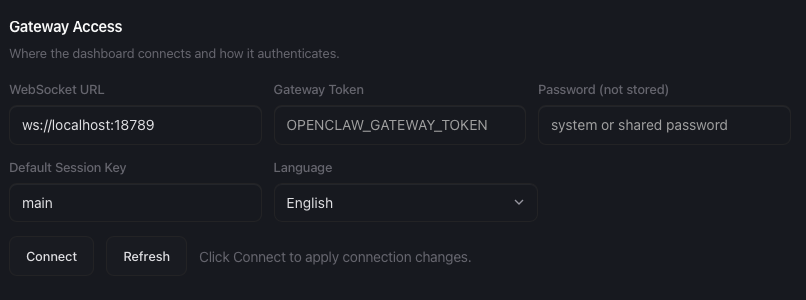
Copy the value of
gateway.auth.token and paste it into the Gateway secret field on the login screen (or later under Settings → Gateway).Alternatively, run
openclaw dashboard on the server. The command creates a single-use login link for the dashboard instead of displaying the token. Keep the token secret: anyone who has it has administrative access to your OpenClaw instance.Step 3
CLI Onboarding & Advanced Configuration
Open a new terminal window (the first one is occupied by the tunnel). Connect via normal SSH:
Local Terminal (new window)
ssh user@your-server-ip
Once logged in, run the onboarding command on your server. If you prefer the step-by-step wizard, use
openclaw onboard --classic. You can change individual settings later with openclaw configure.Server Terminal
openclaw onboard
1
Security Confirmation
Read the security note and confirm it. You confirm that the agent can run commands on your server with the permissions of its user.
2
Mode & Configuration
Since the template already contains a configuration, the wizard offers to keep the existing settings. Keep them to retain the pre-configured PowerPanel defaults (in the classic wizard: Keep existing model config). On a new installation, choose between Quick start and Custom setup.
3
AI Providers & API Keys
Select a provider and paste your API key. OpenClaw checks the connection with a test request. Local models via Ollama are also possible, see the Ollama guide. Official links for key generation:
4
Messenger Integration
OpenClaw supports WhatsApp, Telegram, Discord and Slack, among others. Follow the onboarding prompts for each platform. You can add channels later with
openclaw channels add:Telegram / WhatsApp:For Telegram, create a bot via @BotFather and enter its token. WhatsApp is linked by scanning a QR code with your phone.
Discord / Slack:Create a bot application in the developer portal of the platform and enter its token.
Skip:Skip this step if you only want to use the web dashboard and the terminal interface (TUI).
5
Skill Selection
Select the bundled skills you need. Use Space to toggle a skill and Enter to confirm. Most skills require an additional command-line tool, which the wizard can install:
| Skill | Function | API / Cost |
|---|---|---|
| 1password | Read credentials & secrets via 1Password CLI. | 1Password subscription |
| github | Manage repos, issues & PRs via GitHub CLI. | Personal token |
| openai-whisper | Local speech-to-text with Whisper. | Free (local) |
| summarize | Summarize websites, videos, PDFs & files. | AI API key |
| obsidian | Read & edit notes in Obsidian vaults. | Free |
| blogwatcher | Monitor blogs & RSS/Atom feeds. | Free |
| gifgrep | Search & download GIFs. | Depends on provider |
| camsnap | Snapshots from RTSP/ONVIF cameras. | Camera access |
| himalaya | CLI email client. | IMAP/SMTP |
| nano-pdf | Edit PDFs with natural language. | AI API key |
| openhue | Control Philips Hue lights. | Hue Bridge |
Managing Skills & ClawHub
Reconfiguration:To add or remove skills later, run
openclaw configure. openclaw skills list shows the installed skills.ClawHub:Search and install community skills with
openclaw skills search and openclaw skills install. Update installed skills with openclaw skills update --all and OpenClaw itself with openclaw update.Learn more about Skills
6
Enable System Hooks
Depending on the wizard version, you'll be asked to enable hooks. Hooks are small scripts that react to events in OpenClaw. OpenClaw includes the following hooks; you can manage them later with
openclaw hooks list and openclaw hooks enable:session-memory:Saves excerpts of the current conversation to the workspace memory when you start a new session with
/new.command-logger:Logs chat commands such as
/new and /reset to a log file for troubleshooting.bootstrap-extra-files:Adds additional workspace files to the agent's context at startup.
boot-md:Runs the instructions from the workspace file
BOOT.md when the Gateway starts.compaction-notifier:Notifies you in the chat when the conversation history is compacted.
Learn more about Hooks
Gateway Service Selection
The Gateway service (WebGUI) is already pre-installed via PowerPanel. If onboarding offers to install it, skip this step. You can check the service with
openclaw gateway status and restart it after configuration changes with openclaw gateway restart.Final Step: Starting the Assistant
At the end, the wizard asks how you want to continue. This determines how you interact with OpenClaw right now:
Terminal (TUI):Opens the terminal user interface directly in your SSH session. Suitable for a first test. You can open it again at any time with
openclaw tui.Web UI:Provides the link to the web dashboard. Since your SSH tunnel (Step 1) is active, reload
127.0.0.1:18789 in your browser. openclaw dashboard creates a new login link at any time.Later:Finishes onboarding and returns to the command line. The Gateway service keeps running in the background; start a chat at any time with
openclaw tui.Initial Setup Complete?
Learn how to harden your server and protect your data.
To the Security Guide